
 Ilan Asseo
Using LinkedIn Sales Navigator for Prospecting: A How-To
Step-by-step guide to using LinkedIn Sales Navigator for prospecting, from search setup and buying-group mapping to alert-driven outreach.

LinkedIn Sales Navigator is more than a bigger search box. Used well, it becomes a daily signal system that surfaces the right accounts, the real buying group, and warm paths to decision makers. This how-to walks SDRs and sales leaders through a practical, repeatable workflow for prospecting with Sales Navigator, from setting up precise searches to turning alerts into booked meetings. Where it makes sense, you will see how to pair this with Kakiyo to manage conversations at scale.
Industry evidence: “As customers increasingly learn and buy digitally, sales reps become just one of many possible sales channels.” — Cristina Gomez, Managing Vice President, Gartner.
Source: Gartner
Before you start: set yourself up to win
- Tighten your ICP. Write down industry, geo, company size bands, target functions, seniorities, and exclusion rules. You will encode these in Sales Navigator once and reuse them.
- Tune your profile. A clear headline, a buyer-focused About section, and recent activity lift connection acceptance and reply rates. If you want message frameworks and cadence guidance, see our LinkedIn prospecting playbook in LinkedIn Prospecting Playbook: From First Touch to Demo.
Step 1: Configure Sales Navigator for your market
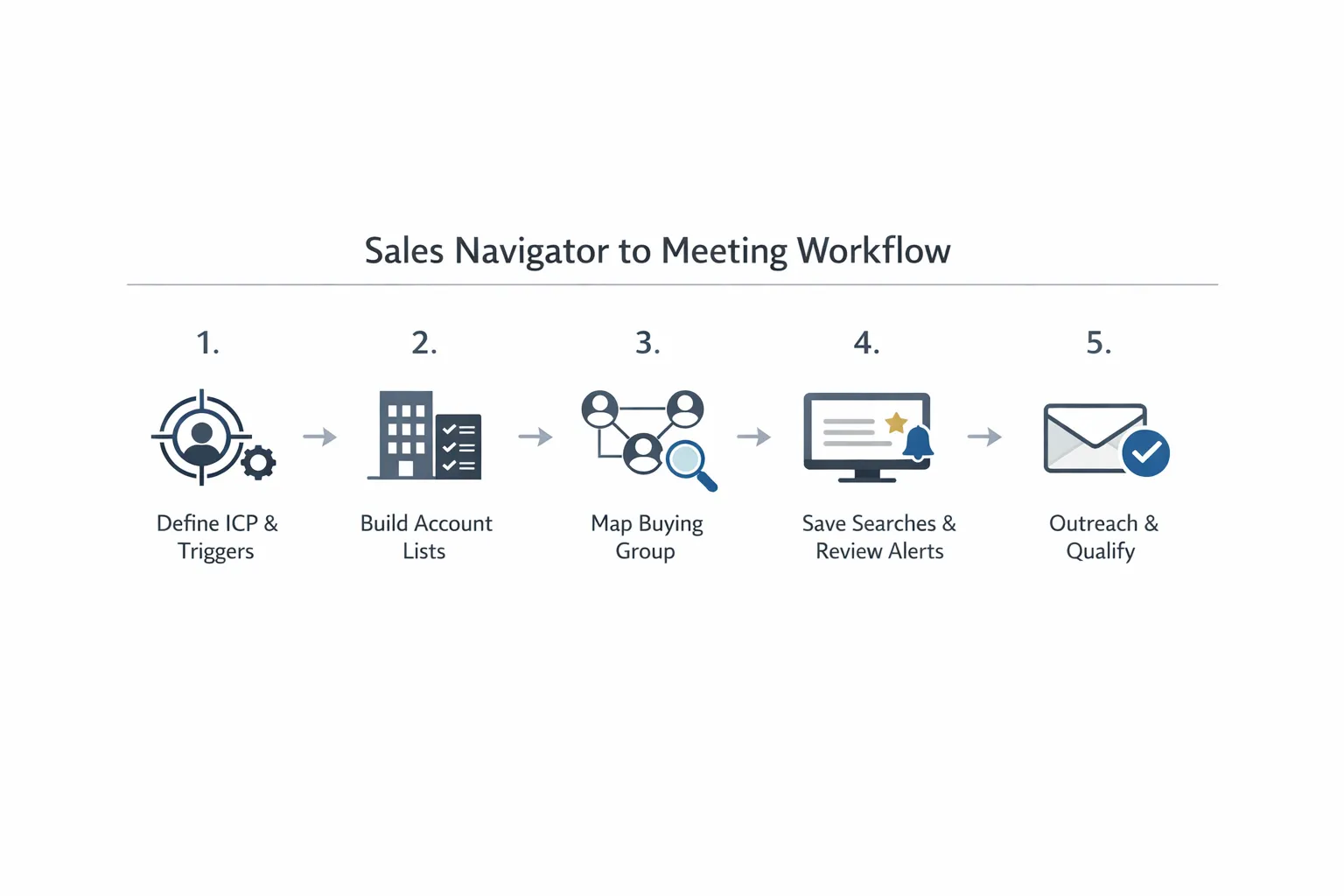
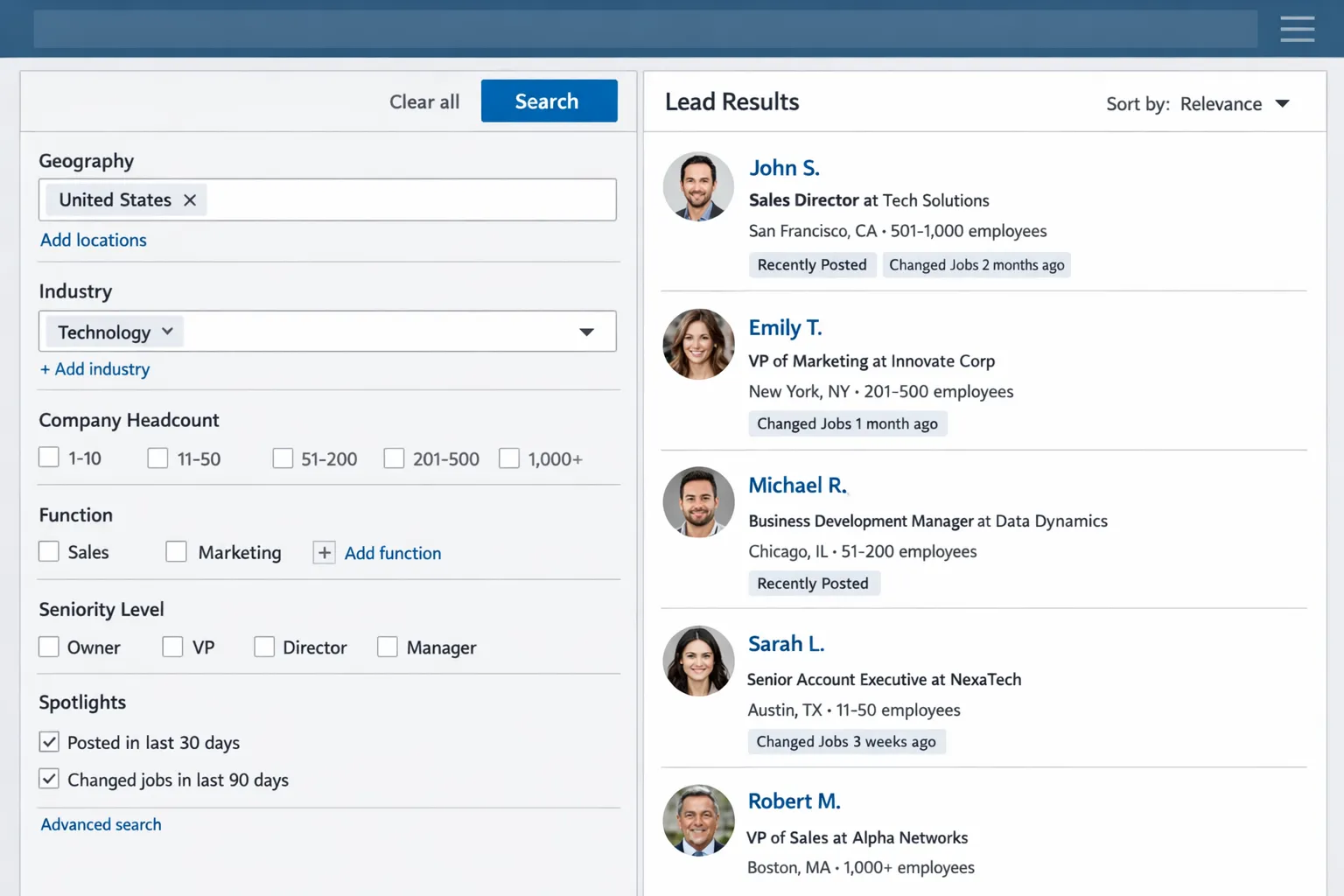
- Set Sales Preferences. In Sales Navigator, set geography, industries, company size, function, and seniority. These preferences act as quick filters across searches.
- Choose list strategy. Create Account Lists for your ABM targets and Lead Lists for buying group members. Lists let you save, share, and monitor at scale.
- If available on your plan, turn on CRM sync and TeamLink. CRM sync centralizes notes and ownership. TeamLink reveals warm intro paths from colleagues and teammates.
For a feature overview and plan differences, see the official Sales Navigator overview and the Sales Navigator Help Center.
Step 2: Build narrow Account Lists
Think account first, then people. Start with company-level filters that map to your ICP and near-term triggers.
- Core filters: company headcount, headquarters location, industry, company type, growth indicators, and hiring signals.
- Add triggers: news mentions, leadership changes, and department growth. Save a separate list for event-driven accounts you want to work this quarter.
A focused Account List lets you run repeatable lead searches inside the right firms instead of boiling the ocean.
Step 3: Map the buying group with precise Lead searches
Inside your Account List, open a Lead search and layer function, seniority, and title keywords. Use Boolean to capture synonyms and adjacent titles.
- Start with Function and Seniority to stay broad, then refine with Title keywords.
- Use Boolean with parentheses and quotes for clarity, for example: title:("Revenue Operations" OR "RevOps" OR "Sales Operations").
- Add filters like Years in role and Changed jobs in past 90 days to find new leaders who are more open to change.
If Relationship Explorer and Buyer Intent are part of your plan, use them to reveal who is most likely to engage and how you are connected.
Step 4: Save searches and turn on alerts
- Save each high-performing search, then enable alerts. Sales Navigator will notify you about new matching leads, job changes, posts, and account news.
- Build a daily alert review habit. New signals drive the morning’s outreach list, which keeps messages timely and specific.
Step 5: Prioritize with Spotlights and warm paths
Use Spotlights to find the leads most likely to reply.
- Posted on LinkedIn in the past 30 days, prioritize active users.
- Changed jobs in the past 90 days, congratulate and position a relevant quick win.
- Shared experiences with you, such as mutual groups, schools, or past companies, create a natural opener.
- Follows your company, close the gap with a value-forward note.
If TeamLink is available, scan warm paths for intros. A short internal ask often outperforms any cold message.
Step 6: Turn insights into respectful outreach
Use the trigger you found as the context, then offer a small next step.
Connection note example for a new role trigger:
Congrats on the new role at {Company}. Noticed the team is growing. I work with {peer company} on shortening time from first touch to first meeting. Open to compare notes next week, I can share what is working for SDR teams in your space.
First message example for a hiring signal:
Saw the open roles on your SDR team. When teams hire fast, ramp and meeting quality can wobble. If it helps, I can share a simple checklist that keeps acceptance, reply, and qualified conversation rates on track during a hiring spike. Interested to take a look.
If you want a full message cadence and more templates, review LinkedIn Outreach That Converts: Proven Templates and Tips.
Step 7: Qualify in-thread, then make booking easy
Keep qualification thread safe. Ask one helpful question that reveals fit without interrogating the buyer.
- Good example, When SDRs reach out on LinkedIn today, what would you like them to do less of this quarter.
- Follow with a two-slot CTA once interest is clear, Happy to share a 10 minute compare of what is working, Tuesday 11 am PT or Wednesday 1 pm PT.
For a simple, consistent rubric to decide when a thread is qualified, use the approach in Lead Qualification Process: Steps, Scoring, and Automation.
Step 8: Measure what matters and iterate searches weekly
Instrument a light funnel and review weekly. Small changes to filters or titles often produce outsized gains.
| Metric | Definition | Where to capture | How to improve |
|---|---|---|---|
| Connection acceptance rate | Accepted requests divided by requests sent | Sales Navigator connections data | Tighten ICP titles, align note to a recent trigger, improve profile |
| First reply rate | First replies divided by delivered messages | Inbox export or manual tally | Shorten copy, reference a specific event, test connection note vs message first |
| Positive intent rate | Replies that express interest divided by replies | Conversation tags or notes | Lead with a clear problem and offer a one-step next action |
| Qualified conversation rate | Threads that meet your rubric divided by replies | Qualification tags in CRM | Ask one thread-safe question, avoid premature demos |
| Meetings booked | Meetings divided by new leads worked | Calendar and CRM | Offer two time options, reduce friction with buyer-led scheduling |
If you are automating at scale, also monitor safety indicators and pacing. For a 2025 checklist that balances scale with compliance, see Automated LinkedIn Outreach: Do It Safely and Effectively.
A practical search cheat sheet
Use this table to translate prospecting objectives into Sales Navigator filters and Boolean examples.
| Objective | Sales Navigator filters | Boolean example | Why it works |
|---|---|---|---|
| Find RevOps leaders at US SaaS 200 to 1,000 employees | Geography, Industry, Company headcount, Function, Seniority | title:("Revenue Operations" OR RevOps OR "Sales Operations") | Lands in the true operating owner for sales process change |
| Identify new marketing leaders in EMEA | Geography, Function Marketing, Seniority Director plus, Changed jobs in past 90 days | title:("Head of Marketing" OR "VP Marketing" OR CMO) | New leaders are more open to new approaches |
| Map the buying group at named ABM accounts | Account List is, Function across Sales, RevOps, Marketing, IT, Seniority Director to VP | title:(Director OR VP) | Creates a multithreaded path before outreach |
| Prioritize active LinkedIn users | Spotlights Posted in past 30 days | n, a | Active posters reply at higher rates |
| Source warm intro paths | TeamLink connections, Shared experiences | n, a | Warm intros raise acceptance and trust |
Note, Boolean search syntax on LinkedIn supports AND, OR, NOT and quotes. You can review LinkedIn’s guidance through the Sales Navigator Help Center.
Daily and weekly operating cadence
- Daily, review saved search alerts and account news, add top signals to today’s micro-list, send targeted connection requests and first messages, log quick notes to lists.
- Weekly, refresh title keywords and exclusions, clone your best search and test one change, prune low-signal accounts from lists, inspect your inbox for objections and update copy.
- Monthly, review your funnel metrics, compare performance by trigger type, and reweight time toward the highest-yield segments.
Common mistakes to avoid
- Overbroad searches that rely only on title keywords, use Function and Seniority first to anchor job scope.
- Treating Sales Navigator as a contact export tool, it is a live signal system that rewards steady list curation and alert-driven outreach.
- Ignoring Spotlights and warm paths, these two features often double reply rates compared to cold titles.
- Pushing a demo too early, qualify with one thread-safe question before offering time slots.
- One-size-fits-all copy across segments, use the trigger you found as the opening context.
- Scaling volume too fast, quality and compliance matter more than daily message counts.
Where Kakiyo fits in your Sales Navigator workflow
Once your searches and lists are dialed in, the bottleneck is running hundreds of respectful, context-aware conversations at once. This is what Kakiyo is built for.
- Autonomous LinkedIn conversations that personalize from your trigger context, from first touch through qualification and scheduling.
- AI-driven lead qualification in-thread, with an intelligent scoring system so you focus on high-value replies.
- A/B prompt testing and industry-specific templates to learn which angles convert inside your segment.
- Conversation override control for sensitive accounts, plus a centralized dashboard with advanced analytics and reporting for your team.
You keep owning the strategy, ICP, and lists. Kakiyo accelerates the day-to-day execution and measurement so SDRs spend time where it counts. Explore how this looks in practice in AI SDR: Automate Conversations, Qualify Faster, Book More and our broader guide, AI for Sales Prospecting: Tactics That Book Meetings.
Putting it all together in 30 minutes a day
- Morning, 10 minutes reviewing saved search and account alerts, add 10 to 20 leads to today’s micro-list based on fresh signals.
- Midday, 10 minutes for connection notes or first messages tied to those signals.
- Afternoon, 10 minutes to qualify active threads and offer two time options where appropriate.
Repeat this cadence, then adjust weekly based on your funnel data. When volume grows beyond your inbox capacity, let Kakiyo handle simultaneous conversations, prompt testing, and scoring, while you stay in control of voice and escalation.
Helpful resources
- Official guide, Sales Navigator overview
- Product help, Sales Navigator Help Center
- Messaging and cadence patterns, LinkedIn Prospecting Playbook: From First Touch to Demo
- Safety and pacing checklist, Automated LinkedIn Outreach: Do It Safely and Effectively
Sales Navigator gives you the where and the who. Your discipline with lists, alerts, and timely context gives you the when and the why. Combine that with Kakiyo’s autonomous LinkedIn conversations and scoring to consistently turn saved searches into qualified meetings at scale.
FAQ
What makes a LinkedIn or cold outreach sequence effective?
An effective outbound sequence matches the buyer's context, uses short messages, and measures reply quality rather than raw volume. Cadence, targeting, and stop rules matter as much as copy.
How many touches should I use before stopping?
Most teams should stop once intent is clearly absent or once the sequence becomes repetitive. The right stop rule protects deliverability, reply quality, and brand perception.
Should I automate all outreach?
No. Automation should remove repetitive work, not replace judgment. The best systems automate targeting, timing, and admin while keeping messaging and qualification grounded in context.
How do I know whether outreach is working?
Track positive reply rate, meeting quality, and downstream conversion instead of open rates alone. If meetings do not progress, the issue is usually targeting or qualification, not activity volume.